





Що підготувати перед початком
У цьому посібнику йдеться про Ordder POS: систему, яка керує касою, QR-замовленнями, кухонним екраном і бек-офісом. Ordder POS працює в браузері на app.ordder.com, тож для бек-офісу нічого не треба встановлювати. Підготуйте все зі списку нижче, і налаштуєте систему за один раз.
- Комп'ютер або планшет з актуальним браузером для бек-офісу й каси.
- Ваше меню: категорії, позиції та ціни, а також додатки, алергени й фото, якщо вони є. Для початку вистачить короткого меню.
- Ваш зал: зали чи зони, де ви обслуговуєте гостей (усередині, тераса, бар), і столики в кожній із них.
- Екран для кухні: кухонний екран працює на будь-якому планшеті чи дисплеї з браузером. Додайте термопринтери, якщо ваша кухня працює з паперовими бігунками.
- Ваші платіжні сервіси: провайдер онлайн-оплати для оплати за столиком і платіжний термінал на касі, якщо він у вас є.
- У Греції: реквізити вашого бізнесу для AADE myDATA, щоб чеки й рахунки-фактури видавалися як фіскальні документи.
Налаштуйте Ordder за дев'ять кроків
Крок 1 з 9
Почніть пробний період і оберіть тариф
Створіть обліковий запис на onboarding.ordder.com. Кожен тариф починається з 30 днів безкоштовно. Що входить у кожен тариф, дивіться на сторінці тарифів, а ціну під ваш заклад підкаже менеджер.
- Starter охоплює до 15 столиків, 2 залів, 5 облікових записів для персоналу й 500 замовлень на місяць.
- Professional додає складський облік, доставку й самовивіз, бронювання, AI Waiter, зміни персоналу та фіскальні чеки.
- Enterprise додає техкарти, роботу з кількома закладами, власні права доступу, доступ до API та AI-офіціанта для дзвінків.
Крок 2 з 9
Додайте дані закладу
Вкажіть назву закладу, адресу, валюту й ставки податків. Вони з'являються в меню для гостей, на чеках і у звітах, тож задайте їх до того, як створювати меню.
Крок 3 з 9
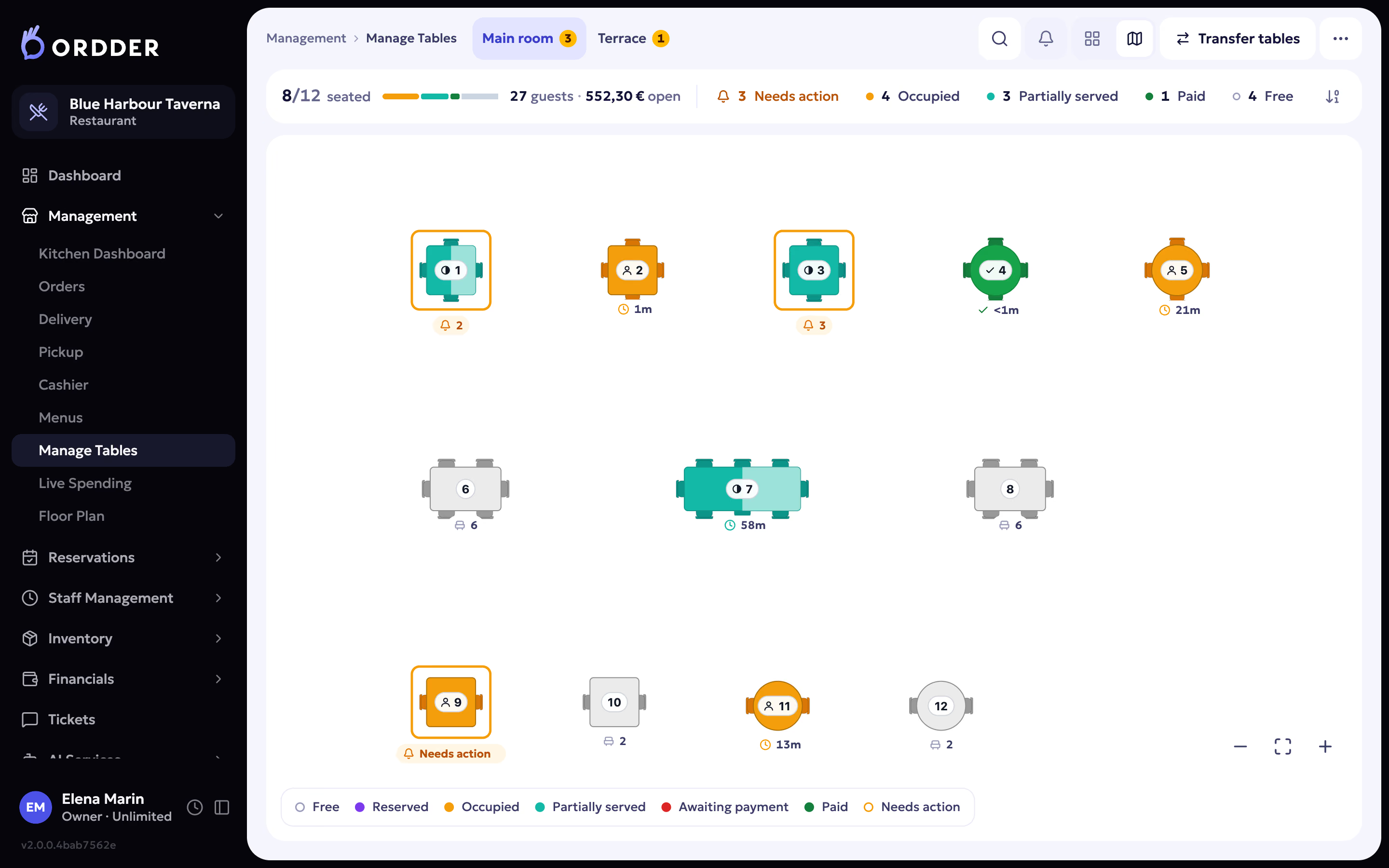
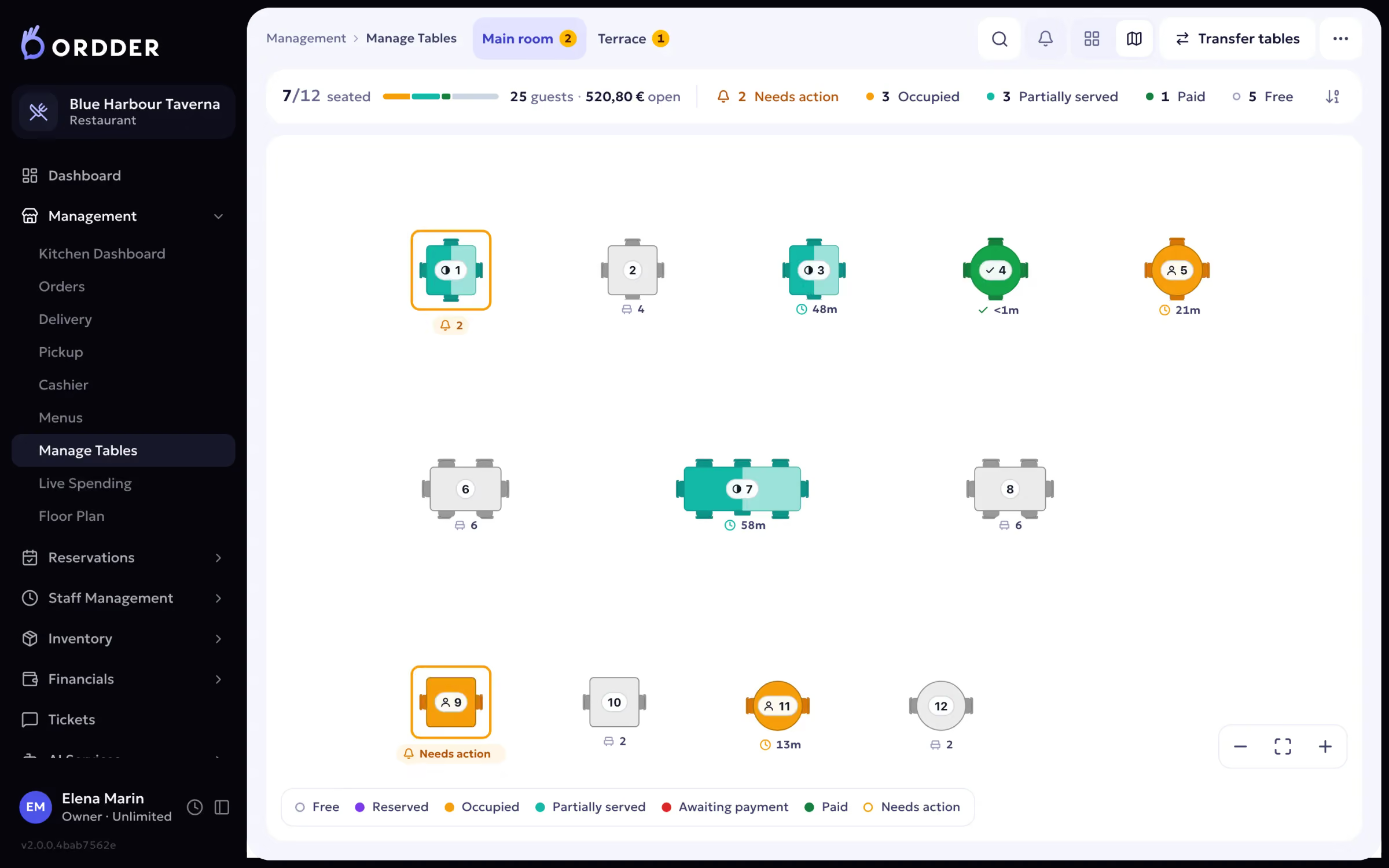
Намалюйте зал
Створіть окремий зал для кожної зони й додайте столики, діапазонами, якщо їх багато. Намалюйте стіни й розставте декор, щоб план виглядав як справжнє приміщення. Барні стільці й шезлонги теж є типами столиків. Кожен столик отримує власний QR-код, і саме завдяки йому замовлення гостей потрапляють до потрібного столика.
- У залі в реальному часі кожен столик показує один із шести станів: вільний, заброньований, зайнятий, частково обслужений, чекає на оплату або оплачений.
- Перенумеровувати, переміщувати й додавати столики можна будь-коли.
Ваш план залу. Крок 4 з 9
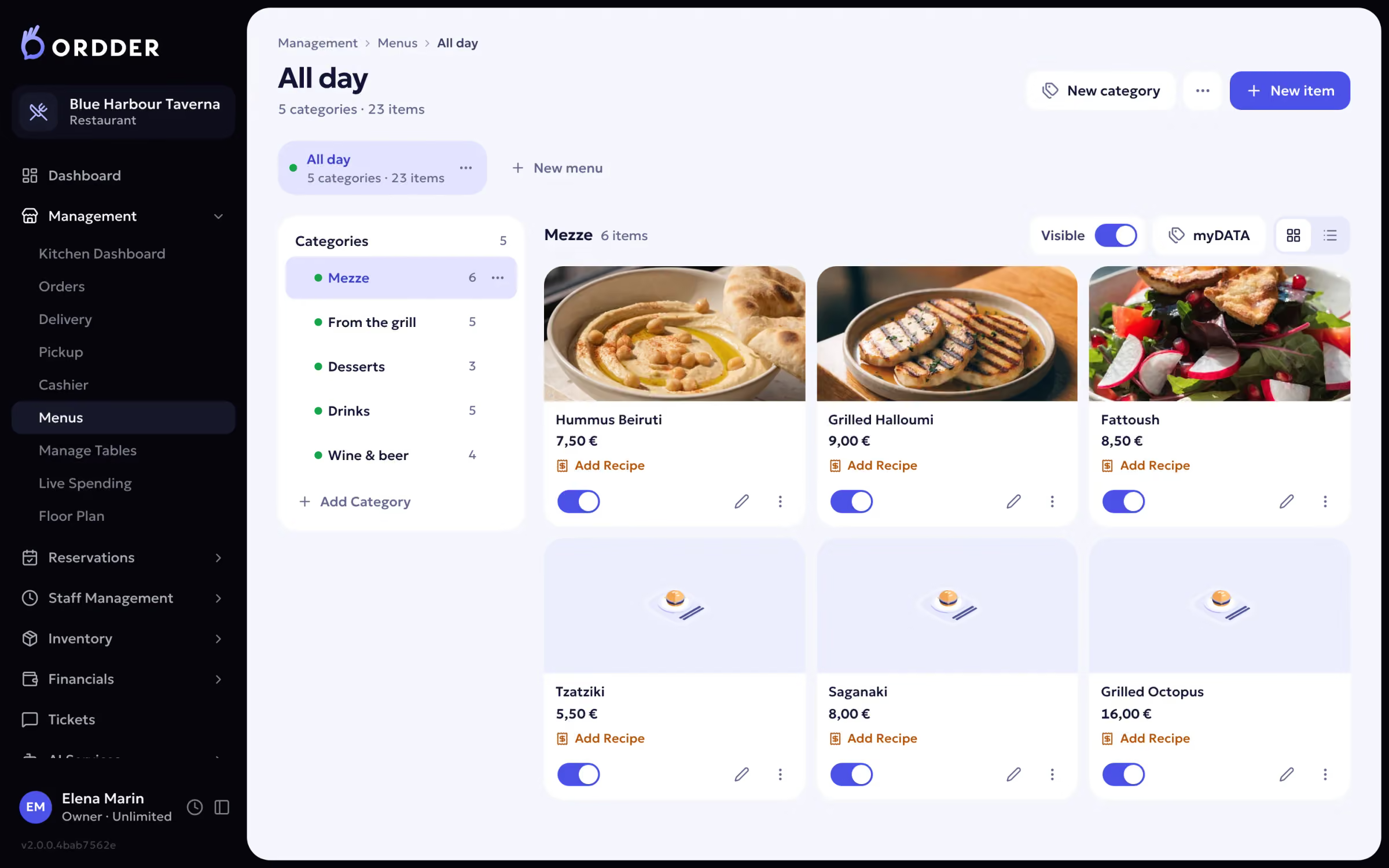
Створіть меню
Додайте категорії, а потім позиції з цінами, описами, додатками й алергенами. Задайте ціну для кожного каналу продажу, якщо в закладі, на доставку й на самовивіз ціни різні. Якщо меню вже є у файлі, скористайтеся імпортом меню.
- Меню для гостей перекладається автоматично, тож гості читають його рідною мовою. Доступні 23 мови.
- Ще немає фото? У тарифах Professional і Enterprise AI може створити фото страв або покращити ваші знімки.
Меню й категорії. Крок 5 з 9
Надрукуйте QR-коди для столиків
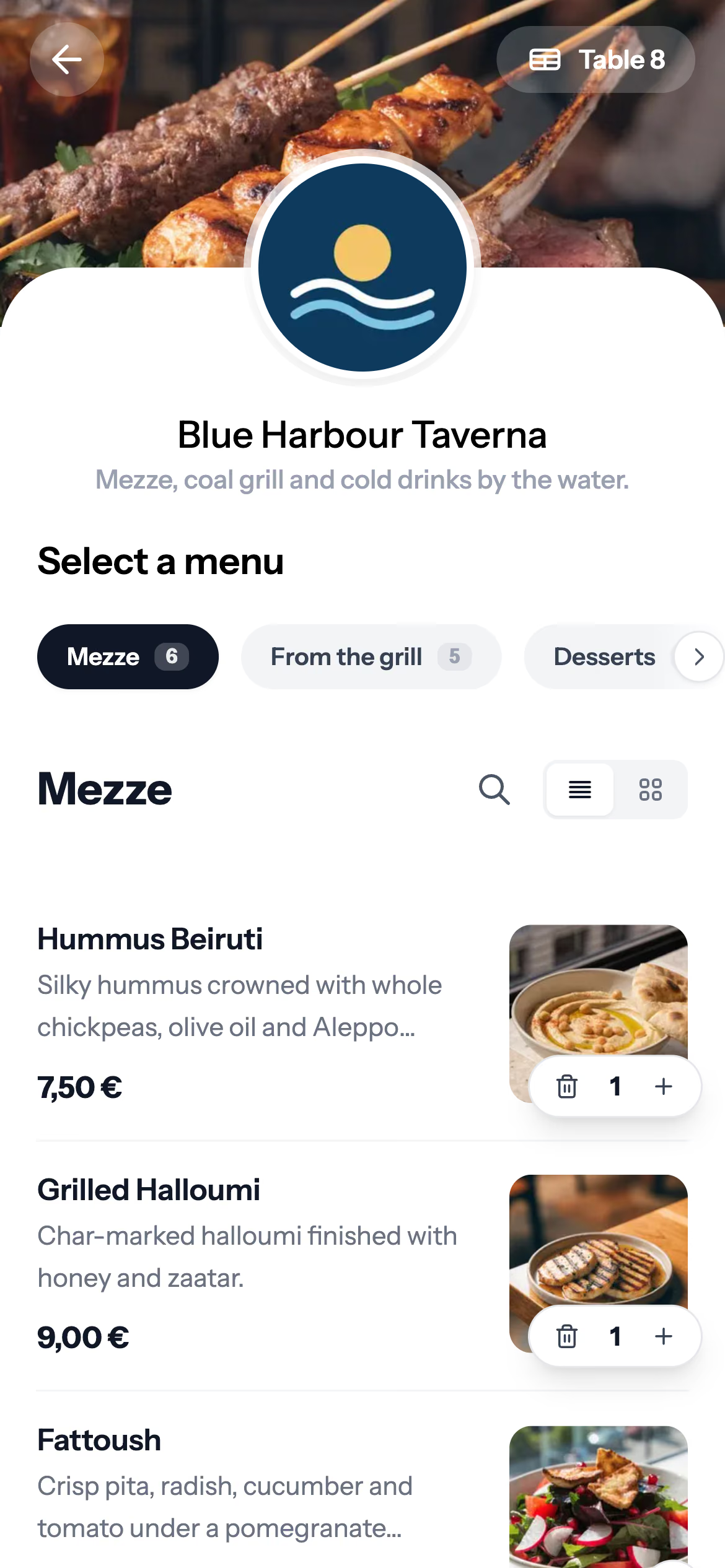
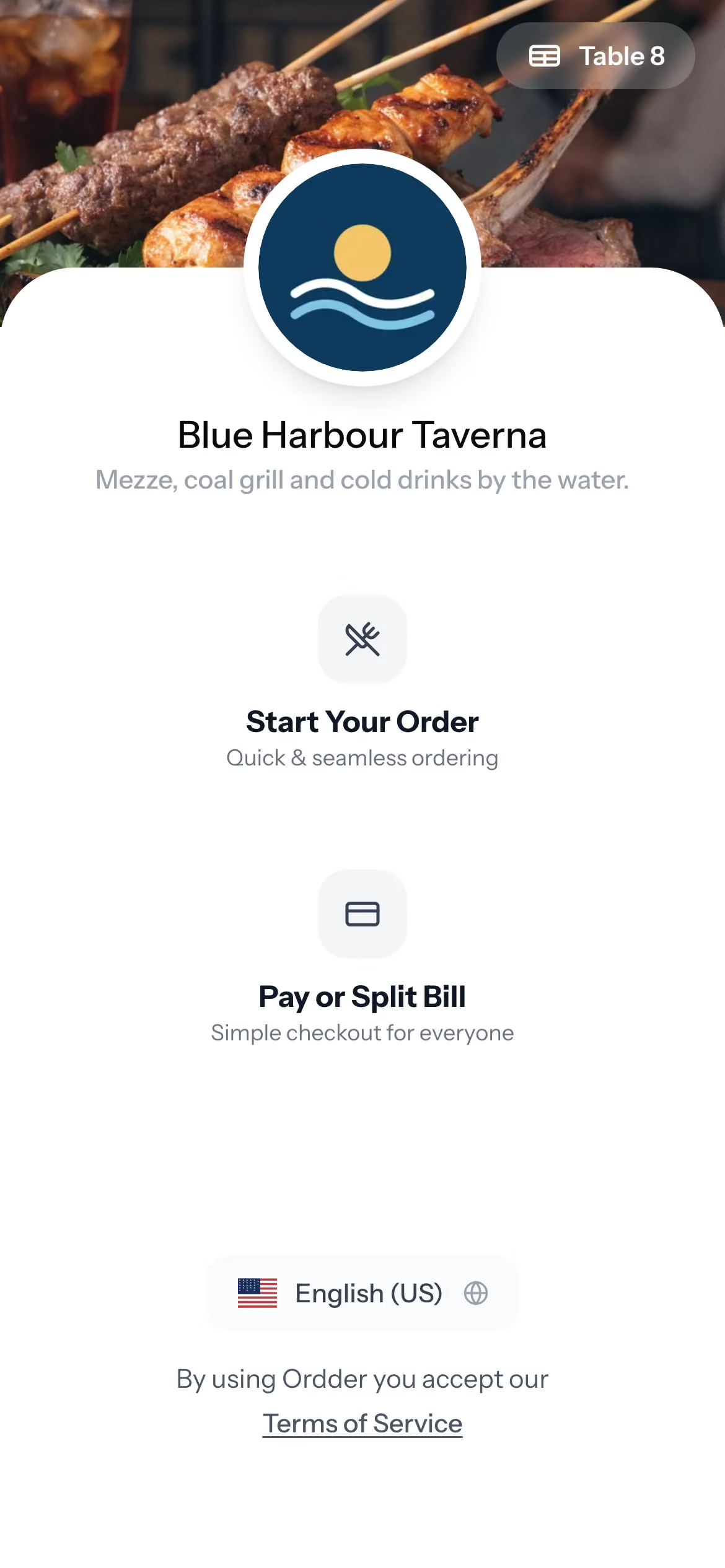
Створіть картки для столиків у QR-дизайнері й надрукуйте їх. Гість, який сканує код, потрапляє на сторінку вашого закладу: замовлення в закладі, перегляд меню, оплата чи розділення рахунку, виклик офіціанта або запитання до AI Waiter у тарифі Professional і вище. Нічого не треба встановлювати.
- Перш ніж друкувати весь комплект, перевірте по одній картці в кожній зоні.
QR кожного столика відкриває його власне меню. Крок 6 з 9
Налаштуйте кухню
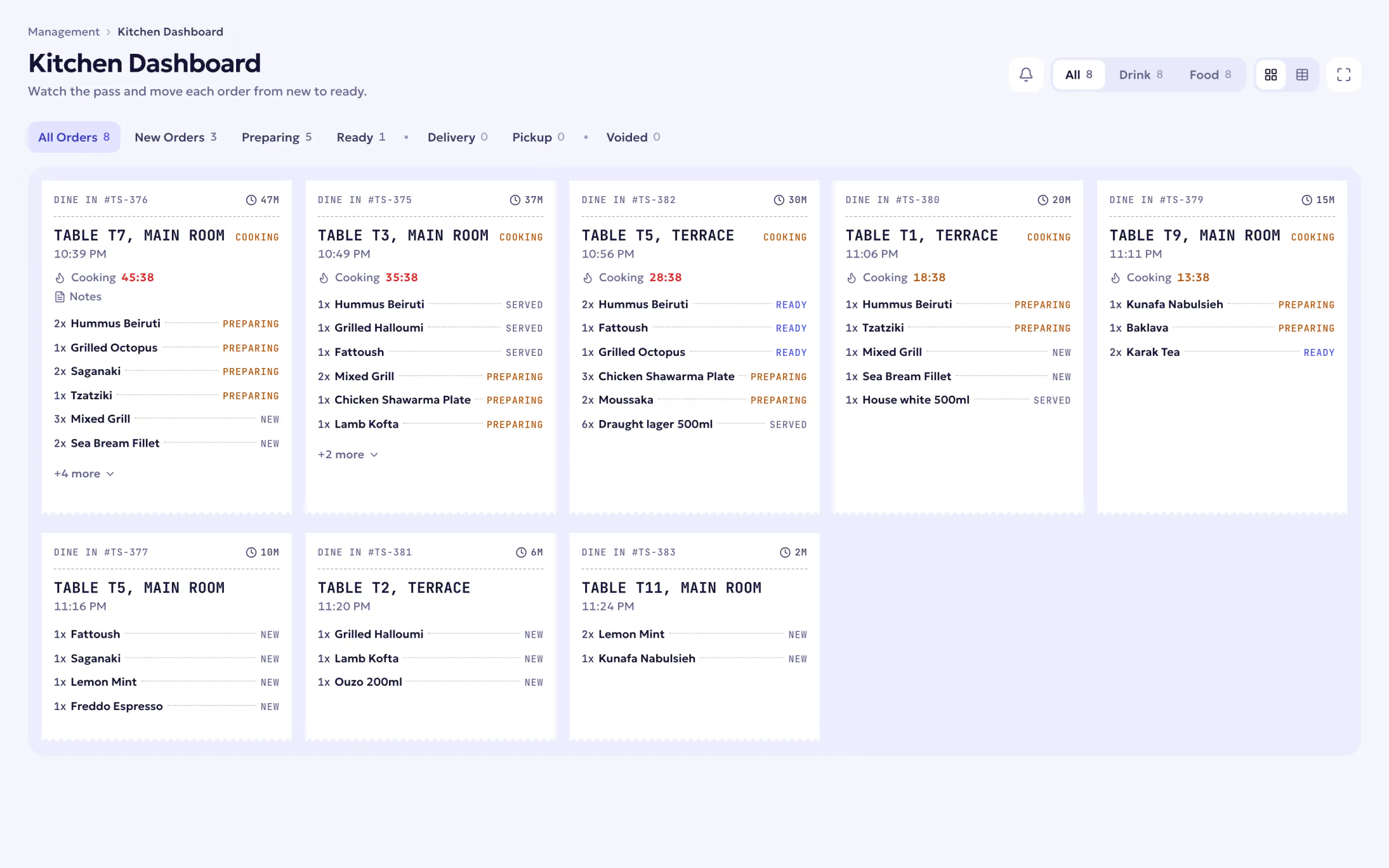
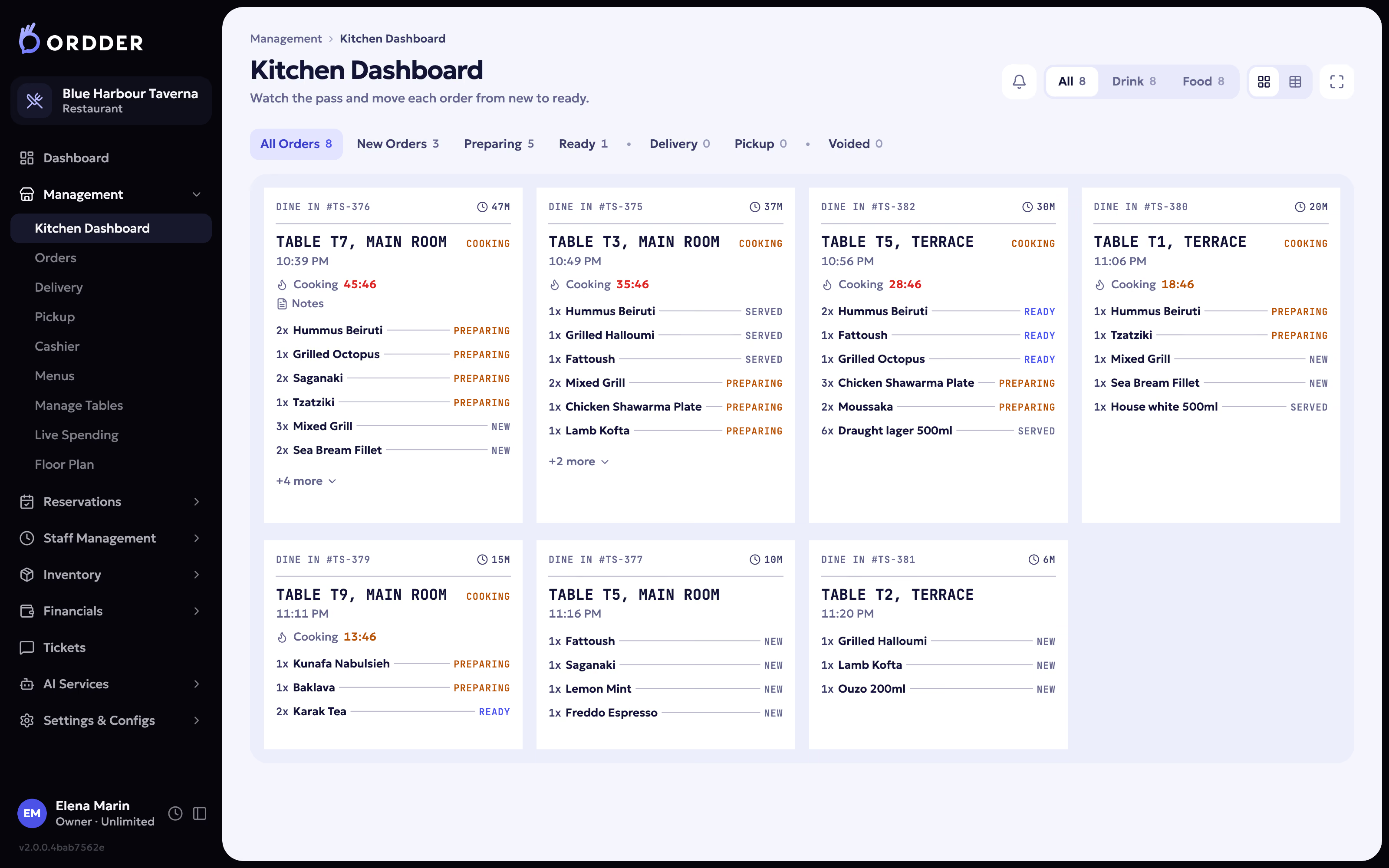
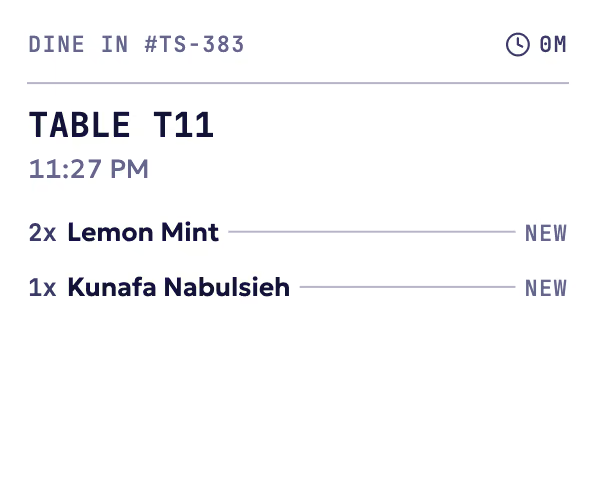
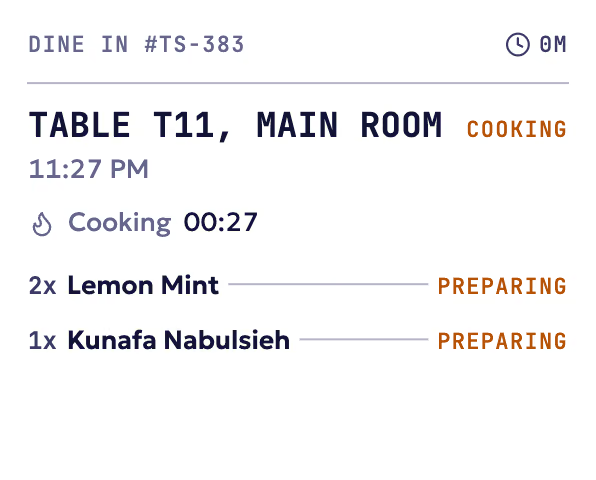
Відкрийте кухонний екран на дисплеї в кухні й увійдіть. Нові замовлення з'являються щойно їх надіслано, зі столика чи з каси, і переходять зі статусу «Нове» в «Готується», а потім у «Готово», з таймером приготування. Щоб друкувати бігунки, підключіть принтери через модуль друку Ordder на комп'ютері з Windows або на комплекті з Raspberry Pi.
- Під'єднуйте пристрої, як-от термінали замовлень і телефони офіціантів, за кодом сполучення зі сторінки «Пристрої».
Кухонний екран. Крок 7 з 9
Підключіть оплату
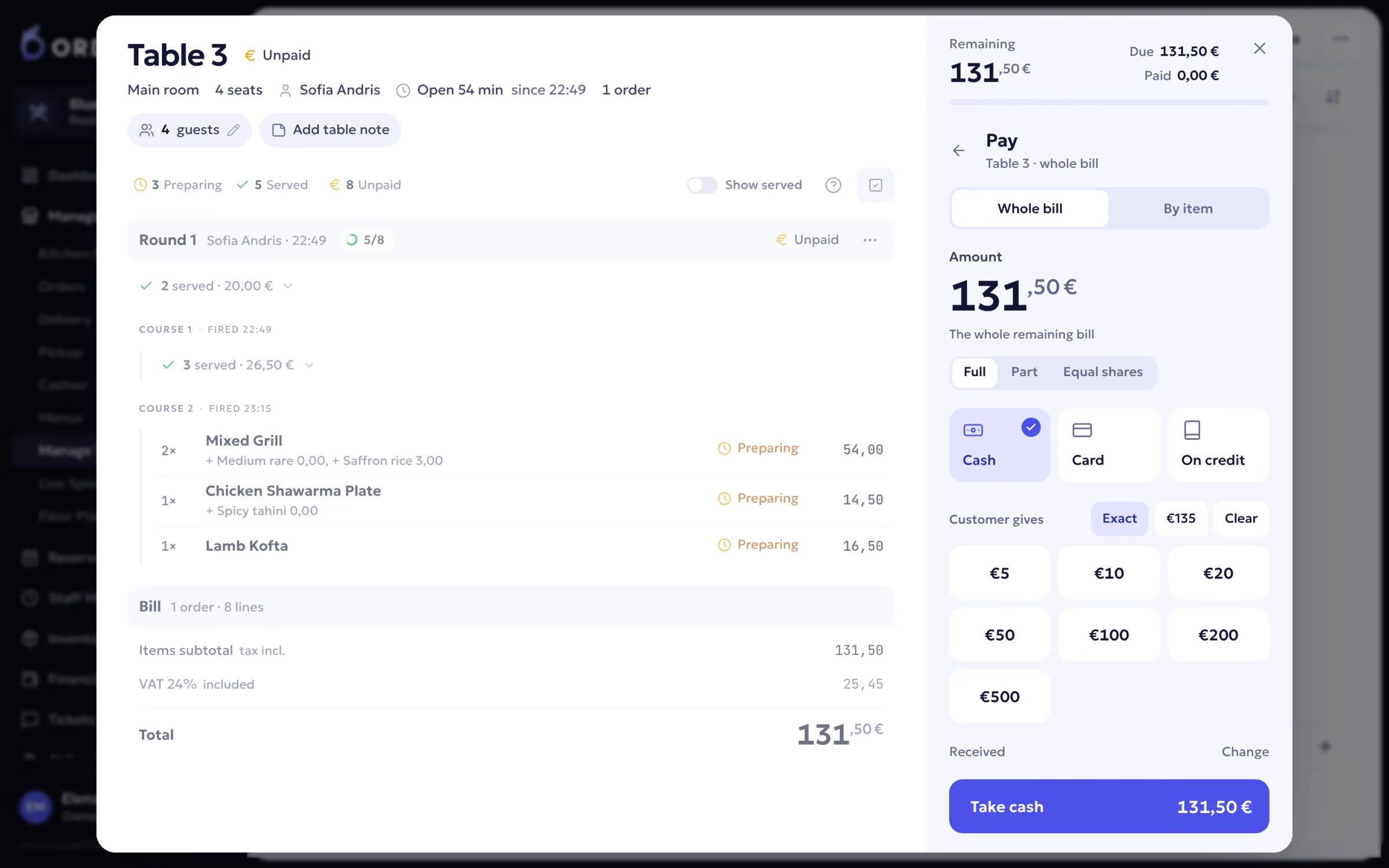
Підключіть провайдера онлайн-оплати, щоб гості могли платити зі столика, ділити рахунок і залишати чайові. Потім підключіть платіжний термінал: Ordder POS працює з терміналами Viva, Mellon і Nexi, Seerbit та eTameiaki. Чайові обліковуються окремо й ніколи не потрапляють у фіскальні підсумки.
- У Греції чеки, рахунки-фактури й кредит-ноти надсилаються в AADE myDATA, а на чеку гостя друкується фіскальний QR-код.
Рахунок і оплата. Крок 8 з 9
Додайте команду
Запросіть працівників і призначте кожному роль: менеджер, хостес, офіціант, касир, кухня, бухгалтер та інші. Персонал залу й кухні входить за особистим PIN-кодом, і для кожної ролі відкривається потрібний їй екран. У тарифі Enterprise можна налаштувати власні права доступу.
- Режим навчання вмикається для кожного закладу окремо: напишіть нам, і ми його ввімкнемо. Далі менеджер починає навчальну сесію, а нові працівники пробивають тренувальні замовлення, які не враховуються у виручці й не потрапляють до податкової служби.
Крок 9 з 9
Проведіть тестовий запуск і відкривайтеся
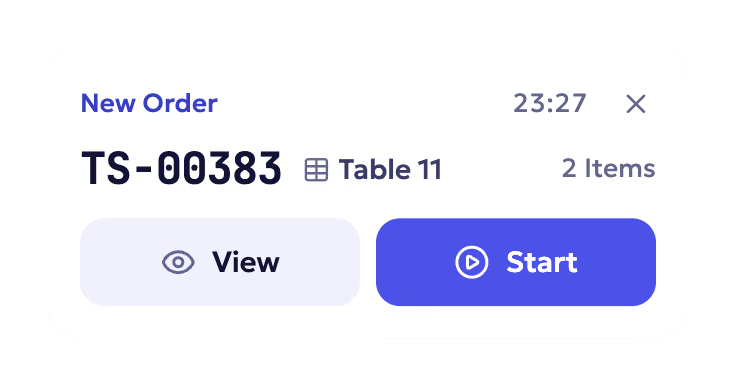
Відскануйте картку на столику власним телефоном і зробіть замовлення. Перевірте, що воно з'явилося на кухонному екрані, позначте його готовим і поданим, а потім оплатіть із телефону. Пробийте друге замовлення на касі й закрийте його на платіжному терміналі. Наостанок зніміть X-звіт, щоб побачити підсумки дня. Якщо цифри сходяться, можна приймати гостей.
Тестове замовлення, потім чек на кухні.


Ваш перший тиждень з Ordder
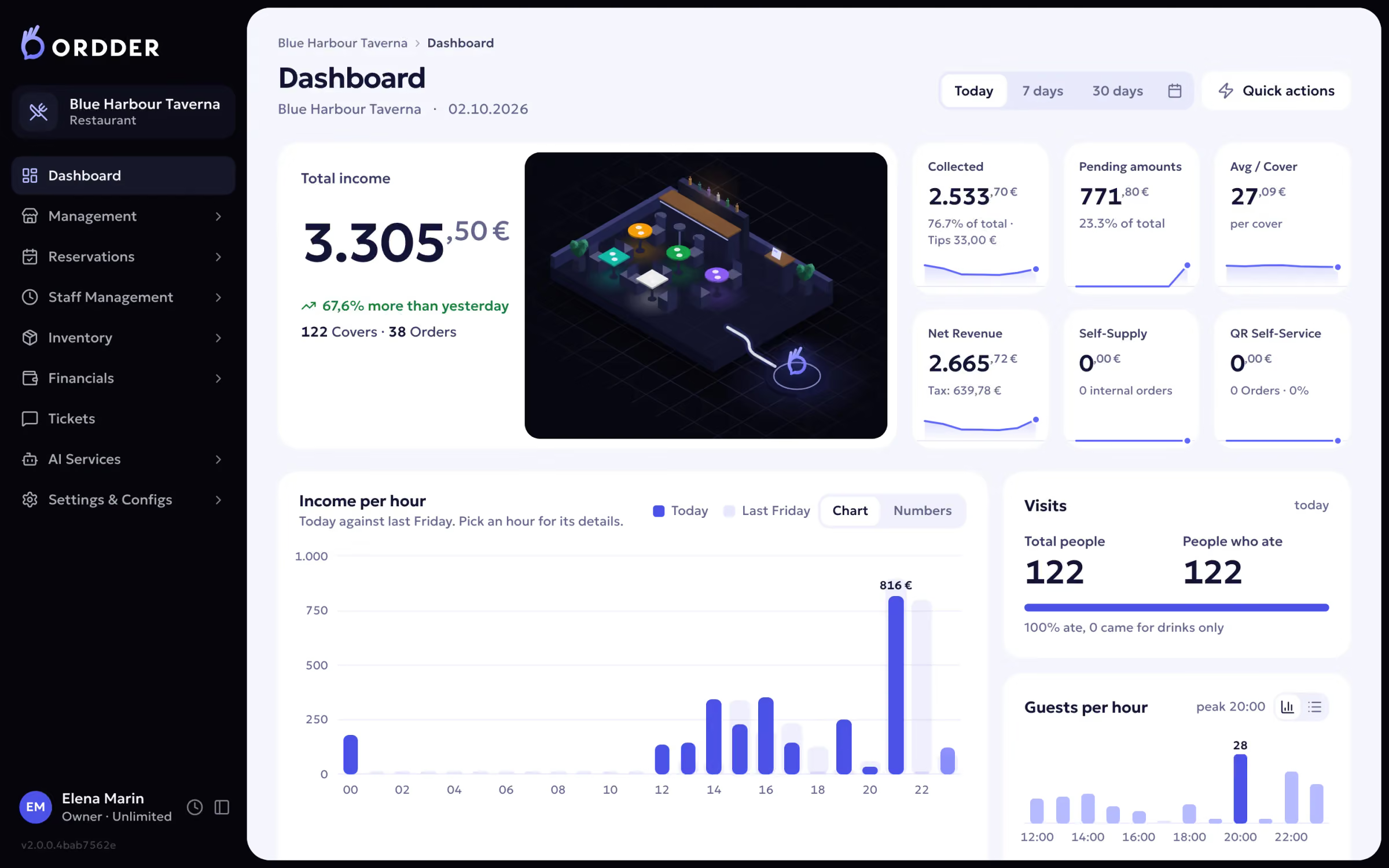
Після відкриття здебільшого залишаються дрібні коригування. У перші дні допоможуть кілька звичок.
- Ставте страви в стоп-лист, щойно вони закінчуються, щоб гості не могли замовити їх зі столика.
- Стежте за залом у реальному часі під час роботи. Столики, яким потрібна увага, виділяються, решта не відволікає.
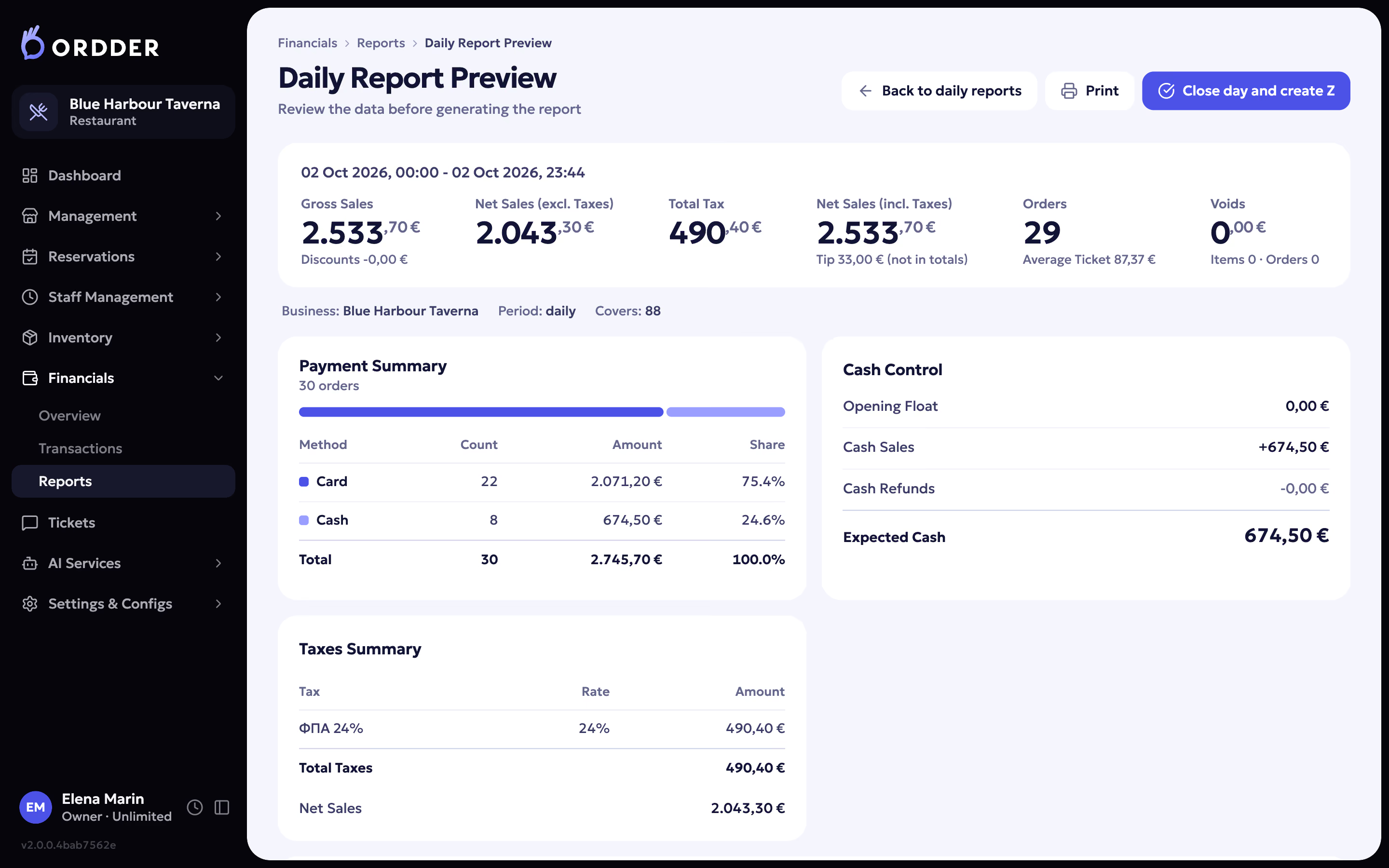
- Закривайте кожен день процедурою завершення дня та Z-звітом, а наступного ранку перевіряйте фінанси.
- Перегляньте звіти після перших вихідних: що продавалося, о котрій годині та через який канал.
Коли будете готові рости, додайте доставку й самовивіз, бронювання зі стійкою хостес і листом очікування або складський облік із замовленнями постачальникам і сповіщеннями про залишки. Усе це частини тієї самої системи, тож нічого нового підключати не доведеться.


Якщо щось не працює
- QR-код відкриває не той столик
- Кожна картка належить одному столику. Передрукуйте картку цього столика в QR-дизайнері й замініть стару.
- Замовлення не надходять на кухню
- Перевірте, чи на кухонному екрані виконано вхід у потрібний заклад і чи є з'єднання з інтернетом. Коли зв'язок відновиться, перезавантажте сторінку кухонного екрана.
- Принтер не друкує
- Переконайтеся, що комп'ютер із модулем друку ввімкнено, а принтер підключено до тієї самої мережі, потім надішліть тестовий друк з Ordder.
- Гості не можуть оплатити зі столика
- Оплата за столиком з'являється, щойно ваш провайдер онлайн-оплати підключений і активний. Перевірте його статус у налаштуваннях оплати.
- Потрібно змінити меню чи зал
- Змінюйте їх у бек-офісі будь-коли. Гості побачать нове меню під час наступного завантаження сторінки.
Не вдається розібратися? Створіть звернення в підтримку з бек-офісу або напишіть на [email protected].